Proxy Settings
This option enables the configuration of a proxy server connection for the sole purpose of connecting between OVOC and AudioCodes Cloud License Manager (CLM). The connection is configured over HTTPS/HTTP/FTP.
| ➢ | To configure proxy settings: |
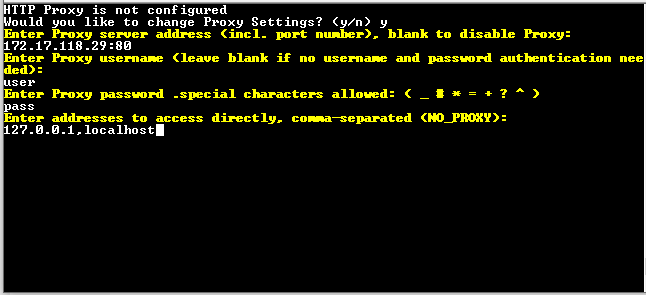
| 1. | From the Network Configuration menu, choose Proxy Settings, and then press Enter. |
| 2. | Select Configure Proxy, type y to confirm, and then press Enter. |
| 3. | Enter the FQDN (without underscores), IP address and port of the proxy server, and then press Enter. |
| 4. | Enter the Proxy server username, and then press Enter. |
| 5. | Enter the Proxy server password, and then press Enter. |
The following special characters are allowed in the password : _, #, *, =, +, ?, ^
| 6. | Enter "No Proxy" addresses (a list of IP addresses for connecting directly from OVOC and not through a proxy server), and then press Enter. |
Proxy Settings